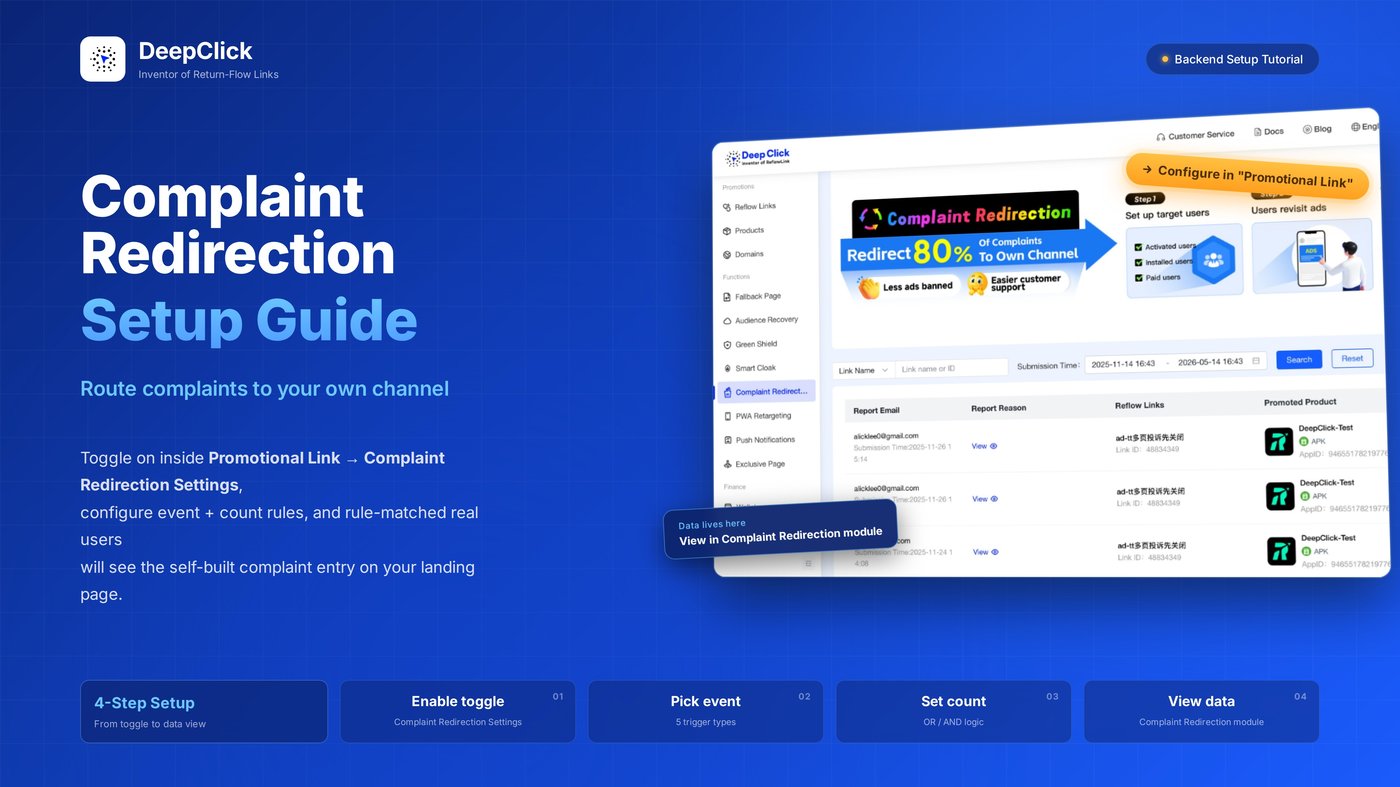
Complaint Redirection Setup Guide: Route Complaints to Your Own Channel

Want to understand the product logic and use cases first? See the Complaint Redirection Overview.
To get Complaint Redirection running on your return-flow landing page, the first thing to figure out is where the configuration actually lives — this is where 80% of new users get stuck.
Two places in the DeepClick platform relate to Complaint Redirection, but only one is for configuration:
|
Platform Location |
Purpose |
|---|---|
|
Promotional Link → Complaint Redirection Settings |
The actual configuration — toggle on, set event rules, decide which users see the complaint entry |
|
"Complaint Redirection" module in the sidebar |
Data dashboard — review submitted complaints. No configuration here. |
The order is straightforward: configure rules inside the promotional link → then come back to the Complaint Redirection module to review the data.
This guide walks through 4 steps in that exact order. End-to-end takes under 5 minutes.
Before You Start
|
Item |
Why You Need It |
Where to Set Up |
|---|---|---|
|
DeepClick account |
Any account that can log in to Console — no extra permission required |
deepclick.com |
|
A published Promotional Link |
Complaint Redirection rules attach to a specific link to take effect |
DeepClick platform → Promotion → Promotional Link |
|
A bound return-flow landing page |
The complaint entry surfaces on the return-flow landing page; without one, there's no surface for it to appear on |
DeepClick platform → Promotion → Return-Flow Landing Page |
|
Your trigger threshold strategy |
Decide which user behaviors should reveal the complaint entry |
Your ops/customer-support team |
Part 1: Configure the Trigger Rules Inside the Promotional Link
Step 1: Open the Promotional Link Edit Page
- Log in to the DeepClick platform
- In the left sidebar, click Promotion → Promotional Link
- Find the link you want to configure, then click Edit at the end of its row
The edit page has 5 tabs in the left sidebar:
```
Promotion Settings
Returning Customer Landing Page Settings
Return-Flow Landing Page Config
Complaint Redirection Settings ← we're going here
Basic Info
```
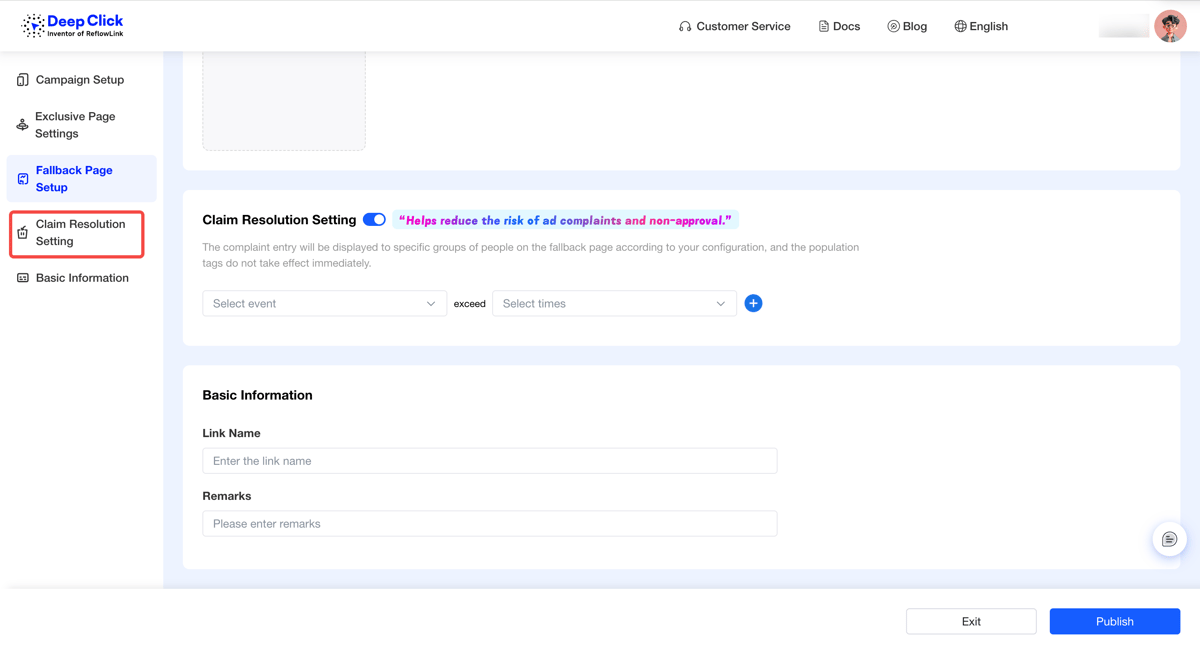
Step 2: Turn On the Complaint Redirection Toggle
Click into the Complaint Redirection Settings section. The toggle is off by default, with a purple ribbon next to the title reading "Helps reduce ad complaint risk."
A line of helper text reads:
The complaint entry will surface on the return-flow landing page for the specific audience you configure here. Audience labels don't update in real time.
Two key points:
- Where the entry appears: on your return-flow landing page — and only for users who match the rules
- Not real-time: after you save, the system needs time to recompute each user's audience label — it doesn't flip on instantly for everyone
Click the toggle to turn it on. The rule configuration area expands below.
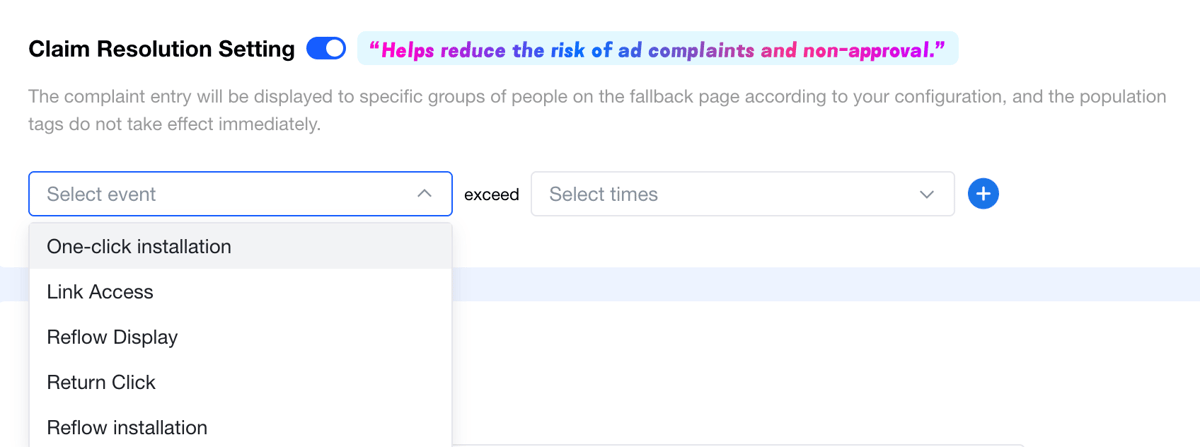
Step 3: Configure the Trigger Condition
The rule reads as one sentence:
When a user's [event] exceeds [count] times, show the complaint entry on the return-flow landing page.
Two fields to fill:
① Event Type (choose 1 of 5)
|
Event |
Meaning |
|---|---|
|
First-hop Install |
The user jumped from the first-hop page to the app store and installed |
|
Link Visit |
Cumulative visits to this promotional link |
|
Return-Flow Impression |
Times the return-flow landing page was shown to this user |
|
Return-Flow Click |
Times this user clicked on the return-flow landing page |
|
Return-Flow Install |
The user jumped from the return-flow landing page to the store and installed |
② Count
Choose the threshold from the dropdown. Higher counts mean a tighter filter and a more qualified audience.
🔑 How to choose between the 5 events:
>- First-hop Install / Return-Flow Install — users who already installed your app are the most likely group to leave bad store reviews- Return-Flow Click — users clicking around on the return-flow landing page without converting may be running into a problem- Link Visit / Return-Flow Impression — broadest coverage but also catches plenty of healthy new traffic
✅ Starter recipe:- Event: First-hop Install or Return-Flow Install- Count: 1 time- Meaning: every user who installed your app sees the complaint entry on the return-flow page — the highest-coverage, lowest-effort combo for reducing store reviews.
Step 4: Add a Second Rule (Optional)
One rule may not cover the full audience you want. Click the + button on the right of the rule row to add a second one — at most two rules, at minimum one.
When you add a second rule, an "OR / AND" logic dropdown appears between them:

|
Logic |
Meaning |
When to Use |
|---|---|---|
|
OR (default) |
Users matching either rule see the complaint entry |
You want to maximize complaint interception |
|
AND |
Users must match both rules to see the entry |
You want precise targeting and to control how often the entry shows |
Examples:
- OR: "First-hop Install > 1 time" OR "Return-Flow Click > 3 times" — users who installed the app or clicked around the return-flow page see the entry
- AND: "Return-Flow Install > 1 time" AND "Return-Flow Click > 3 times" — users who installed and clicked at least 3 times see the entry, much tighter targeting
💡 Which to choose?- Want to maximize complaint interception → use OR- Worried that over-showing the entry could prompt extra complaints → use AND
Step 5: Save the Configuration
Once the toggle is on and the rules look right, click Publish at the bottom of the page to save the link.
Remember the in-product reminder: audience labels don't update in real time. After publishing, the system recomputes user labels in the background — don't assume nothing happened if you can't see the entry immediately.
Part 2: View Complaint Data in the Complaint Redirection Module
You've finished the rule side. Now let's look at where the actual complaints land.
Step 6: Open the Complaint Redirection Module
- In the left sidebar, find Return-Flow Features → Complaint Redirection
- Click in
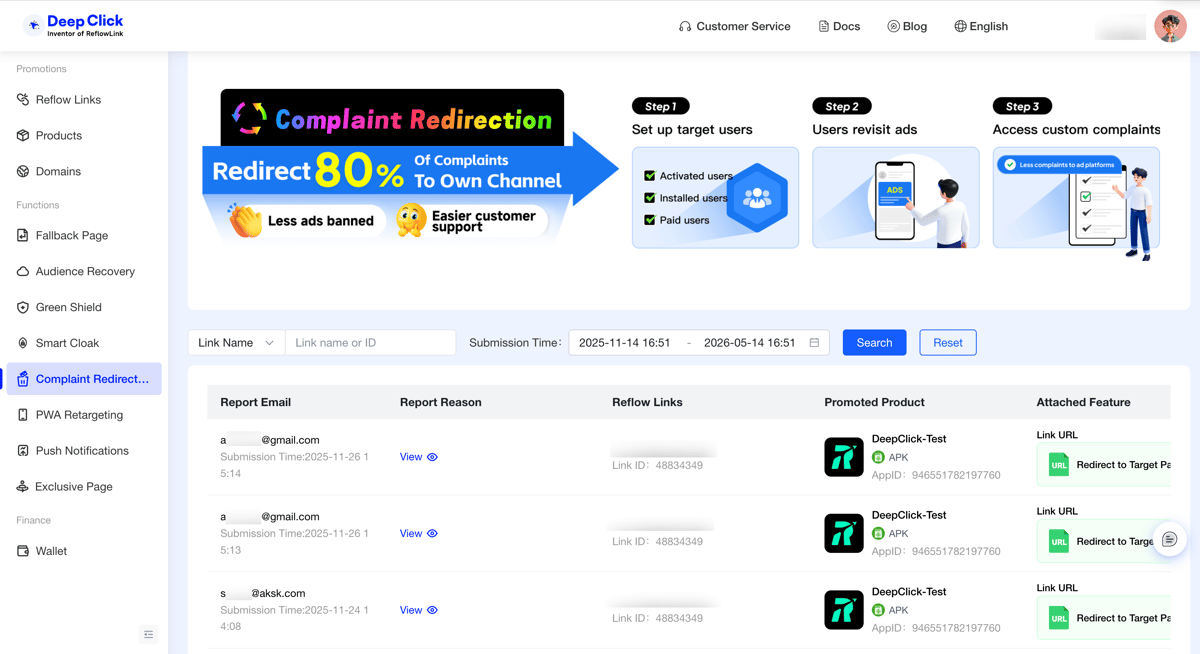
Inside, a banner at the top reads "Divert 80% of complaints to your own channel" with a three-step flow illustration (set the audience → audience revisits the ad → enters your self-built complaint channel). This is the module's product positioning, not configuration you need to do here.
Scroll down to the data table.
Step 7: Browse the Complaint Data List
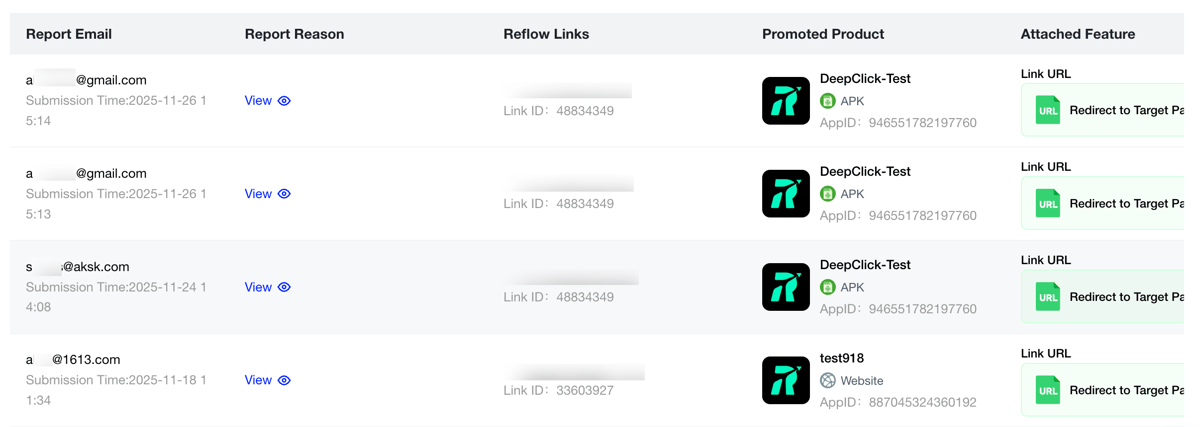
Columns:
|
Field |
Meaning |
|---|---|
|
Reporter Email |
Email the user submitted with the complaint |
|
Reason |
Complaint type + description (click View to expand the full text) |
|
Promotional Link |
Which link this complaint came from |
|
Promoted Product |
The associated product |
|
Bound Function |
The return-flow landing page's button jump method for this link (Link URL / Custom Address / Other Product) |
Filters at the top:
- Link name / ID: search complaints from a specific link
- Submission time: narrow the time range
Step 8: Open Complaint Details
Click View in the Reason column to expand the full complaint text submitted by the user.
After You're Done
You've now:
- ✅ Turned on the Complaint Redirection toggle on your promotional link
- ✅ Configured event + count trigger rules (optionally with a second rule joined by OR/AND)
- ✅ Confirmed you can see submitted complaints in the Complaint Redirection dashboard
From here, the workflow is to sync complaint data into your customer support routine — handling each complaint, contacting the user, and closing the loop happens on your customer-support side.
FAQ
Q1: Does the complaint entry show up immediately after I publish?
No. The in-product helper text states clearly that audience labels are not real-time. After publish, the system recomputes user labels over time. Don't worry if you don't see the entry the moment you save.
Q2: Where exactly does the complaint entry appear on the landing page?
The complaint entry is rendered by DeepClick on the return-flow landing page automatically — its position and style are system-controlled. As long as the link has a return-flow landing page bound, you're good. You don't configure entry placement separately.
Q3: Can both my rules coexist?
Yes. At most two rules, at minimum one. The dropdown between them toggles OR / AND — OR means either rule, AND means both rules.
Q4: Can I exclude certain users from seeing the entry?
The rule engine is positive matching only — users see the entry when they meet the conditions. There's no exclusion rule. If you want to narrow the audience, switch the second rule to AND and stack stricter conditions.
Next Steps
- Understand the product logic in depth → see Complaint Redirection Overview
- Pair your link with a review-defense strategy → see Smart Cloak Setup Guide
- Need an account or have questions → contact the DeepClick business team
