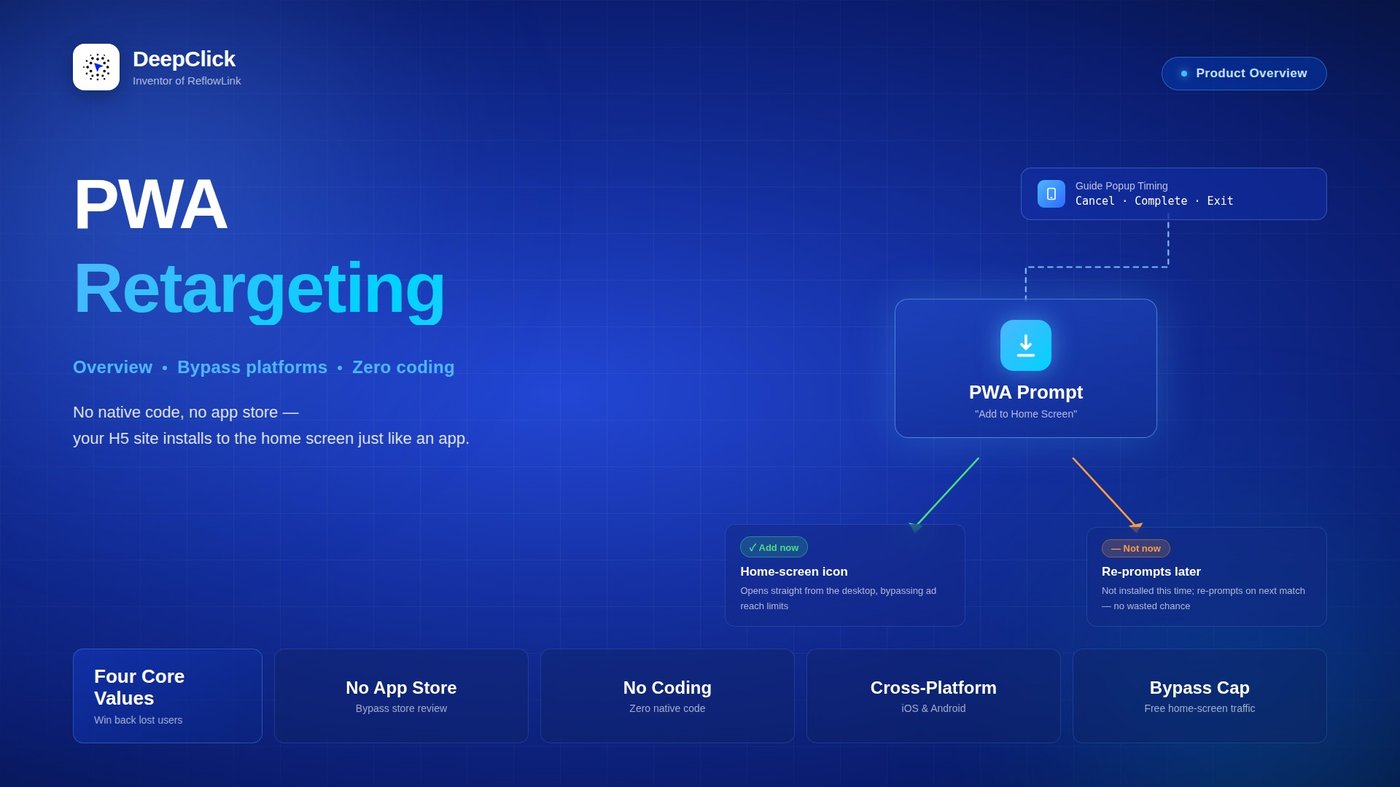
PWA Retargeting Overview: Bypass Platforms, Zero Coding

The most painful part of running ads isn't getting clicks — it's users who click and then leave. They abandon a download halfway through, uninstall a few days after installing, or scroll past once and never come back. Ad platforms tag these users as "already reached," so you can't reach them again no matter how much you spend — your budget is wasted.
What makes it worse: you'd love to give these lost users a new path back, but building an app means engineering, testing, app store review, and maintaining two separate builds for iOS and Android. That's a six-month project at best, with unpredictable cost — and your app might still get rejected by the store for being in a sensitive category.
DeepClick PWA Retargeting offers a different path: no native code, no app store. It lets your existing H5 site install onto a user's home screen just like an app. Once installed, users open your product straight from a home-screen icon — bypassing ad-platform reach limits, bypassing store review, bypassing iOS/Android adaptation — with one set of assets covering everything.
This article walks you through how PWA Retargeting works, its prompt timings, its core value, and where it fits best.
What Is PWA Retargeting
PWA (Progressive Web App) is a W3C-standard web capability. Through native browser APIs, an ordinary H5 website gains the ability to be "added to the home screen." With one tap, the website appears on the phone's home screen as a standalone app — with an icon, a splash screen, and its own window, virtually indistinguishable from a native app.
DeepClick packages this capability into a retargeting tool: you attach a PWA configuration to your Reflow Link, and when a user hits a key moment on the product landing page (canceling a download, completing a download, or about to leave), the system automatically pops up an "Add to Home Screen" prompt — converting a "scroll-and-leave" visitor into a "lives-on-the-home-screen" long-term user.
In one sentence:
PWA Retargeting = the retention hook of an app, without building an app.
How It Works: The User Journey
The entire PWA Retargeting journey is just 4 steps — half the steps of a native app's download path:
|
Stage |
User action |
System action |
|---|---|---|
|
① User lands on the product page |
Browses the page |
Loads the regular landing content |
|
② A prompt timing is triggered |
Cancels download / completes download / about to leave |
System pops up the PWA prompt |
|
③ User taps "Add" |
Confirms |
Browser installs the site to the home screen (icon + app name) |
|
④ User opens it later |
Taps the home-screen icon |
Launches the PWA, counted as one reflow launch — a free re-engagement outside ads |
Compared with the native-app path, PWA Retargeting skips the app store entirely: no opening Google Play / App Store, no searching, no waiting on an installer — the site is "installed" in seconds. This extremely low friction is why PWA install conversion rates are significantly higher than native apps in most scenarios.
Three Guide Popup Timings
The PWA prompt doesn't fire at random — that would annoy users. DeepClick limits it to 3 of the moments most likely to convert, and you pick whichever fits your campaign stage:
① Pop up on download cancel
The user has already tapped "Download," but abandons it when the prompt appears or partway through — the key instant where they had download intent but pulled back.
Why it's the golden window: the user already has baseline interest in your product (they wouldn't have tapped download otherwise); they were simply turned away by friction — download waiting, data anxiety, system warnings. Offering a "no download needed" PWA prompt at this moment hits the least resistance.
Best for: testing, scaling, and steady stages alike. Recommended starting point for beginners.
② Pop up after download completes
The PWA prompt fires immediately after the APK finishes downloading.
Why it works: the user has just completed an "effort" (waiting for the download), so their sunk-cost mindset is at its peak and they're more receptive to a follow-up prompt. Also, finishing a download doesn't mean they'll install it — many users download and then forget the file — and this timing catches those "downloaded but never installed" drop-offs.
Best for: APK products and the back end of the conversion funnel; works best stacked with the download-cancel timing.
③ Pop up when about to leave the page
The user is about to leave (mouse moving to close, back gesture, switching tabs) — the last retention window in the user journey.
Why it's the final chance: it covers everyone the first two timings didn't catch, including pure browsers who never tapped download at all. "About to leave" means the user has given up on the regular landing experience, and the PWA prompt is the final safety net for this traffic.
Best for: website products (which have no "download" action to trigger on) — first choice; for APK products, a fallback on top of the first two timings.
Four Core Values
① No App Store: bypass store review
A PWA runs entirely inside the browser engine and is not distributed through any app store — not Google Play, App Store, Galaxy Store, or any other. This means:
- No store rejection — especially for sensitive categories (finance, gaming, adult, medical, etc.), where a native app would likely fail review; PWA bypasses it entirely
- No store takedown — your product's fate stays in your own hands and won't suddenly go dark because of a store policy change
- No developer account, no qualification review, no store revenue share — your Reflow Link and PWA configuration take over everything
② No Development: not a single line of native code
A PWA wraps your existing H5 site directly into an app, with no need to build separate iOS (Swift) and Android (Kotlin) versions. All you need is:
- An H5 site that loads normally (your existing campaign or landing page works)
- An app name, an app icon, and a redirect URL
Fill in a few fields in the DeepClick Console and your website gains home-screen install capability in 5 minutes — saving at least 3–6 months of native development time and freeing your engineering resources for features that actually create value.
③ Cross-Platform: one set covers iOS and Android
The PWA standard is fully supported by all mainstream browsers — iOS Safari, Android Chrome, Firefox, Edge:
- iOS users: tap the Share button in Safari → Add to Home Screen, and a standalone icon appears
- Android users: tap the PWA install prompt in Chrome → Add to Home Screen, with an even more native-like experience (standalone window, splash screen, push notifications)
One PWA configuration covers both iOS and Android users at once — no maintaining two builds, no two rounds of review — at a fraction of the resource cost of a native app.
④ Bypass Reach Limits: a home-screen icon = free re-engagement
This is PWA Retargeting's biggest hidden value — bypassing the ad platform's frequency cap on reaching the same user.
To prevent "the same ad harassing a user," ad platforms cap how many times a given user can be reached by the same advertiser within a window. Once a user is tagged "already reached," you can't reach them again no matter how you bid. But once a user adds your PWA to their home screen, every time they open it from that icon is a 100% direct hit — costing none of your ad budget and bound by no platform reach cap.
A home-screen icon is essentially "an entry point the user created themselves" — you simply guide them to create it, and every later visit is fully decoupled from your ad spend.
What Users Actually Experience
What does the PWA prompt look like on a user's phone? Roughly this visual flow:
- The user is browsing your fallback page
- Once a prompt timing is hit, a guide card pops up in the center or at the bottom of the page — showing the app icon, app name, a short line of value copy, and a prominent "Add" button (the visual style auto-adapts to your fallback page's primary color)
- The user taps "Add," and the browser invokes the system-native "Add to Home Screen" confirmation
- Once confirmed, a new app icon immediately appears on the home screen
- When the user later taps the home-screen icon, the PWA launches full-screen — visually almost identical to opening a native app
The whole process feels very light to the user — unlike "installing an app" with its waiting and system warnings, it's more like "bookmarking a website to the home screen," so the psychological resistance is low and the conversion rate is naturally higher.
Where It Fits Best
PWA Retargeting isn't a master key. It fits these scenarios best:
|
Scenario |
Why it fits |
|---|---|
|
APK distribution |
The share of users who cancel an APK download is generally high (30%–60%); PWA recaptures this lost traffic directly |
|
Website products (WordPress / WooCommerce / Shopify, etc.) |
They have no "install" action of their own; PWA is the only way to get users to "add to home screen" |
|
Sensitive categories |
When a native app can't get into the store or gets taken down at any time, PWA is the lowest-compliance-risk path to home-screen distribution |
|
Lean teams with tight budgets and few engineers |
No separate iOS / Android development needed — one H5 reused directly |
|
Products chasing long-term retention |
The home-screen icon provides a free re-engagement channel outside ads, a solid retention hook |
Where it doesn't fit:
- Google Play / App Store products — already distributed through the store; adding PWA only complicates the conversion path
- Heavy functional apps (e.g. video editing, 3D games) — they need extensive native hardware capabilities that a PWA can't fully support
- Pure brand-awareness campaigns — users have no repeat-visit need, so a home-screen icon has limited value
How the Data Flows Back
Once PWA Retargeting is live, all data is aggregated in the PWA Retargeting module of the DeepClick Console:
- Reflow Launches: the cumulative number of times the PWA was opened from the home screen (multiple opens by the same user accumulate, reflecting retention depth)
- Installed Users: the deduplicated count of users who successfully added it to their home screen via the prompt (reflecting install-funnel performance)
- Launch Records: the time, user UUID, language, IP, and corresponding PWA app for each launch — usable for user-behavior and geographic-distribution analysis
- Installed Users list: a deduplicated list of every user who installed the PWA, for follow-up engagement by your operations team
With these two core metrics, you can quantify the real impact of PWA Retargeting — no guessing about "whether this feature works."
Ready to Set Up PWA Retargeting?
Setting up PWA Retargeting takes just three steps — configure the PWA app under Products, attach it to a Reflow Link and pick a prompt timing, and finally check the data in the PWA Retargeting module. The whole setup takes under 5 minutes.
👉 PWA Retargeting Setup Guide: Add Your Website to the Home Screen Like an App
If you run into any issues during setup, feel free to reach out to your customer success manager or DeepClick customer support. Here's to strong retention numbers from your PWA Retargeting 🚀
